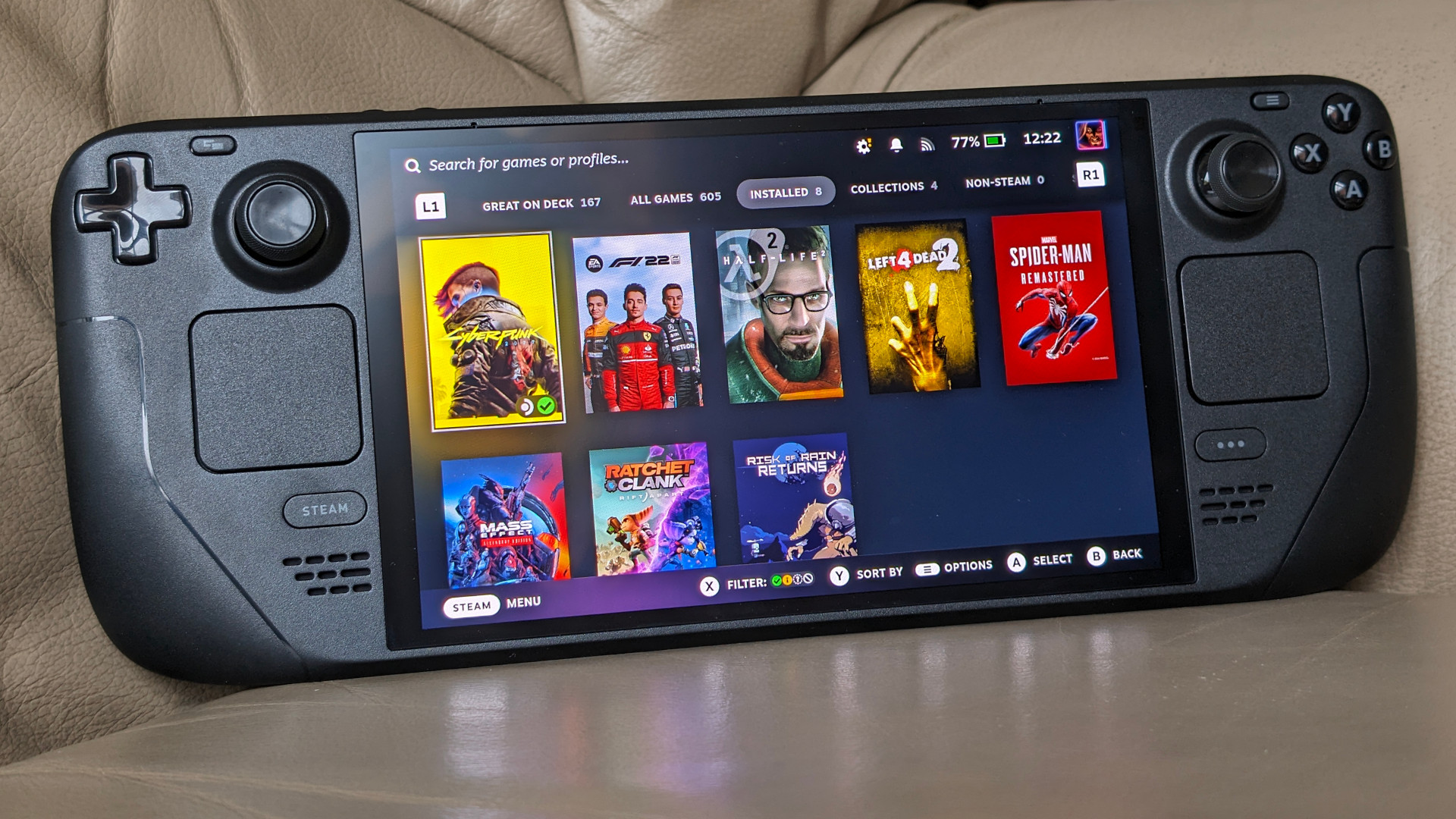
This is a Steam Deck, running SteamOS:
And this is my laptop, importantly not running SteamOS:
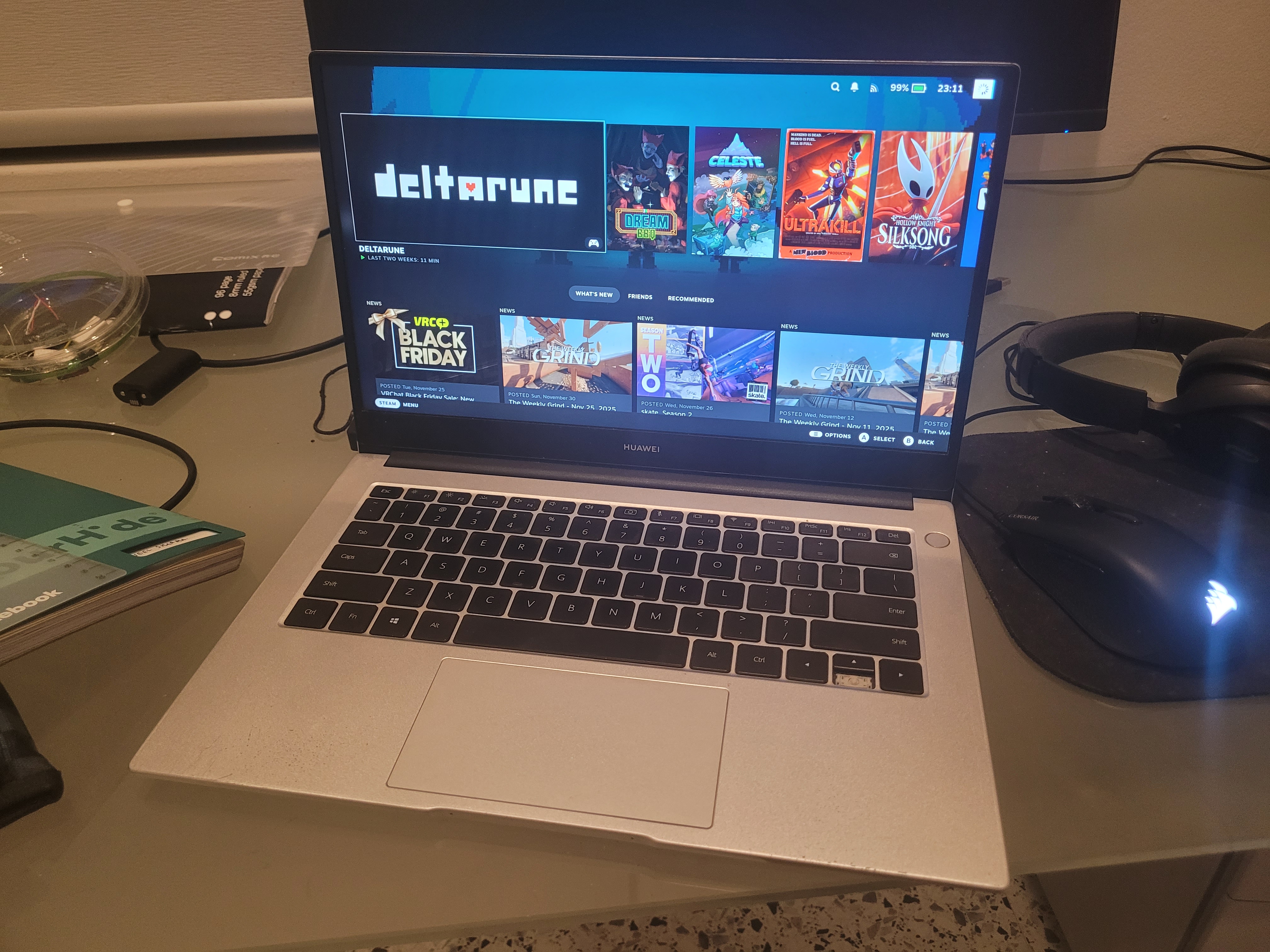
It’s important to note that this isn’t just Steam running in Big Picture Mode inside a desktop environment - this is Steam running in Big Picture Mode with no desktop environment running (or even a window manager!) - same as how the Deck runs Steam.
So how does the Steam Deck run Steam, if not through a desktop environment? To answer this question, we need to first understand how graphical applications are even displayed on Unix-like machines.
Wayland and Gamescope
In recent times, the Wayland protocol is used to allow graphical applications to be rendered on a display. The concept is very simple - every graphical application, or Wayland client, communicates with a single Wayland compositor via a standardized protocol. The compositor is the one doing the heavy-lifting, and is responsible for things like:
- Laying out all application windows visually
- Handling multiple displays
- Handling multitasking capabilities
- Handling user input
- Actually pushing pixels to a screen
- Running fancy visual effects, if desired
- And a lot more!
You might be familiar with some Wayland compositors. Popular ones include:
All of these have support for the functionality listed above, but most of it is useless in the context of video gaming! Virtually all video games:
- Run in a single window
- Occupy the entire screen
- Are usually the only application running, for performance
All the multi-tasking and visual effects functionality of these compositors just becomes pure overhead!
So how does the Steam Deck run Steam? Through their own compositor, Gamescope! Gamescope is a microcompositor that focuses on displaying a single, fullscreen application on a single display, and nothing more. This removes the performance overhead of having to handle multiple applications and windows by simply not supporting them, and also enables various performance optimizations that are only possible with a microcompositor.
And the best part? You can install it on any Linux distro!
Setup Guide
To install Gamescope, simply use pacman (or your distro’s equivalent):
sudo pacman -S gamescopeAnd then, you can add Gamescope as a Wayland session, so you can pick it when you log in:
# /usr/share/wayland-sessions/steam-big-picture-mode.desktop

[Desktop Entry]
Name=Steam Big Picture Mode
Comment=Start Steam in Big Picture Mode
Exec=/usr/bin/gamescope -e -- /usr/bin/steam -tenfoot
Type=Application
The important line is the one starting with Exec= - it determines the command executed to start
the Wayland session. In this case, it’s starting Gamescope, which is starting Steam in Big Picture
Mode (/usr/bin/steam -tenfoot). By passing the -e flag, we also enable Gamescope’s Steam
integration, which adds things like the “Switch to Desktop” option inside of the Steam UI (although
it does not work).
And that’s it! Next time your computer starts up, you can choose to start Steam Big Picture Mode without loading an entire desktop environment or window manager!
Issues
It’s not perfect though. One major problem is that there is no good way to pick a higher display refresh rate than whatever Gamescope picks by default. My monitor has a maximum refresh rate of 75 Hz, but the default setting for the monitor is 60 Hz, and I cannot change it. In addition, some Gamescope-Steam integrations simply do not work, such as the “Switch to Desktop” option that should allow you to switch back to your regular desktop environment, but instead crashes Steam and Gamescope. However, games do run noticeably smoother on Gamescope, so these are issues I can live with.
Conclusion
If you have low-spec hardware and want an easy performance boost for Steam games on Linux, I would recommend installing Gamescope and seeing if you have any problems with it. If the experience is great, congratulations! You’ve successfully turned your machine into a Steam Deck, without having to install an entirely new distro!